Step 1. Download and run the MyIPHide App
MyIPHide supports Windows, Mac, Linux, and Android. You can download the app for your system. This guide is for desktop systems. View the guide for Android here.
Step 2. Log in to the MyIPHide App
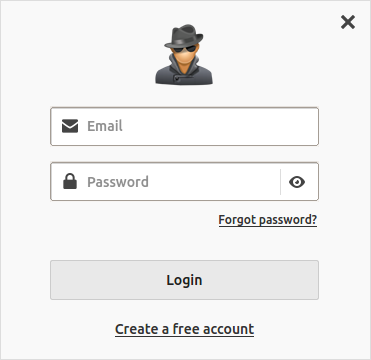
If you don’t have an account, please click the “Create a free account” link on that login dialog.
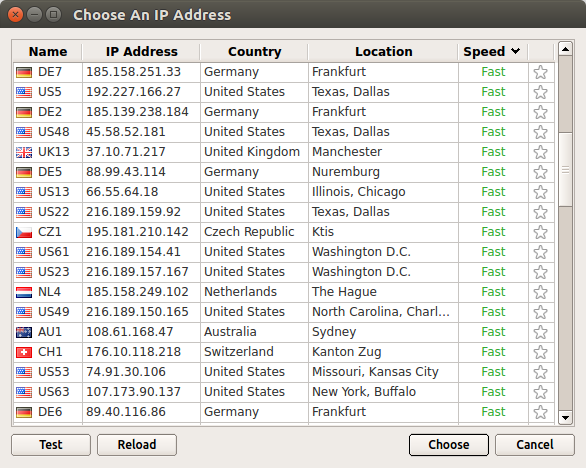
Step 3. Choose an IP address you like
Step 4. Check IP to confirm it’s working
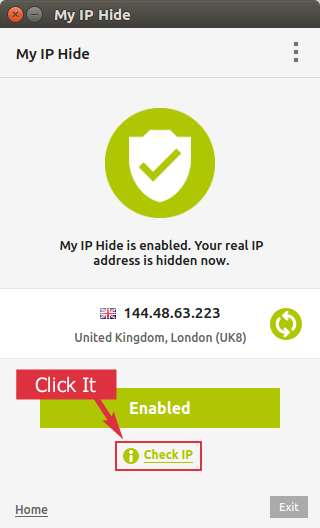
It will open your default browser to check your IP address. It should be the same as the one shown on the MyIPHide main window.
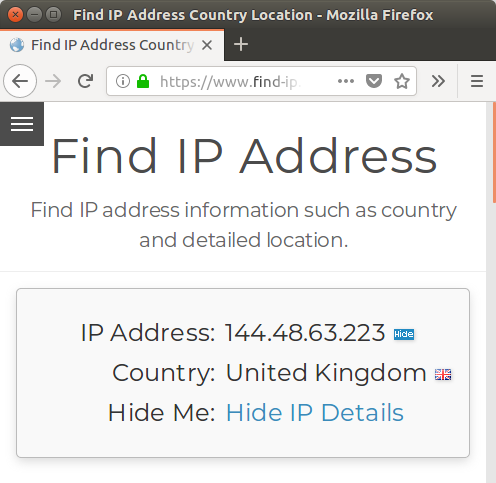
Now you can surf any website you want, such as Youtube, BBC, or Facebook.