Every website you open on your iPhone can see your real IP address. From it they know your country and ISP, and they can link your visits together or block you by region. Hiding your IP address on iPhone solves this: sites see the proxy server’s IP instead of yours.
There are three easy ways to hide your IP address on iPhone. All of them also work on iPad:
- Use the My IP Hide iOS app. It’s the easiest way: free to use, no setup and no account needed.
- Set a proxy manually in iPhone Settings. This works with any proxy server, including My IP Hide running on your computer.
- Open a free web proxy. Nothing to install, good for quick one-off visits.
Method 1: Hide Your iPhone IP with the My IP Hide iOS App
My IP Hide has a native iOS version now, so you no longer need a computer to change your iPhone’s IP. The app is free to use: you get 8 free proxy servers with no time or data limit, and the free version doesn’t even require an account. Just install it, tap the connect button, and your browsing goes through one of its private proxy servers. It keeps working when you switch between Wi-Fi and cellular data.
Steps:
- Install My IP Hide on your iPhone from the apps page.
- Tap the connect button. The free version works without an account. (Paid users sign in to unlock all servers.)
- Open Safari or any app and check your IP address. It should show the proxy server’s location, not your own.
- To surf with your real IP again, tap the disconnect button in the app.
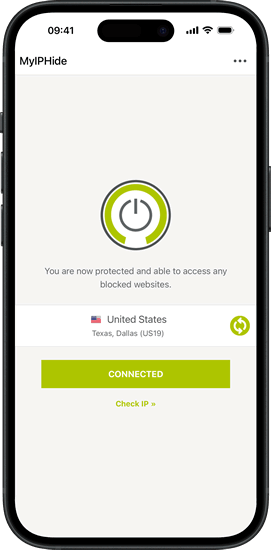
My IP Hide also runs on Android, Windows, Mac, and Linux, and one license works on all your devices.
Method 2: Set a Proxy Manually in iPhone Settings
If you don’t want to install an app, you can enter a proxy server directly in the iPhone proxy settings. This is also the classic method for using My IP Hide running on a Mac or Windows computer: let the computer run the proxy, then point your iPhone at it.
- Your iPhone and the computer must be in the same LAN (Wi-Fi).
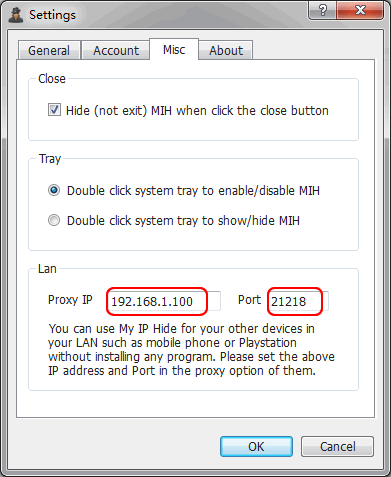
- Click the “Setting” button on My IP Hide on the computer.
- Go to the “Misc” tab of the “Settings” dialog. There you will see the Proxy IP (Server) and Port.
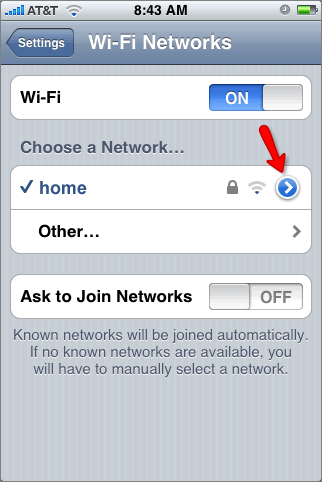
- On your iPhone, open Settings → Wi-Fi → tap the info (i) button of your network → Configure Proxy → Manual, and enter that proxy IP (server) and port.
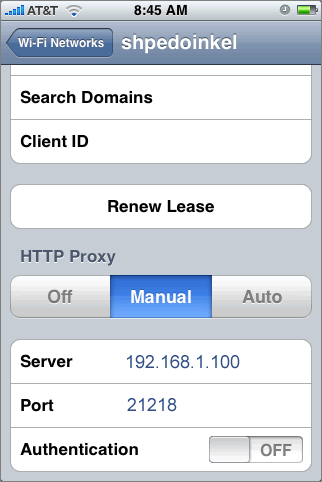
- Done. Safari and other apps now use the proxy server. When you shut down the computer or exit My IP Hide on it, remember to turn off the “HTTP Proxy” option of your iPhone. Otherwise, it can’t open any web pages.
Method 3: Use a Free Web Proxy (No Setup)
If you just need to open a blocked page once, use a free web proxy in the browser: open a proxy website, type the address you want to visit, and it loads through the proxy server. Our free proxy list shows working public proxies and web proxies you can try.
The trade-offs: free proxies are slow and often overloaded, they can see everything you send through them, and they only cover the pages opened in that tab; your other iPhone apps still use your real IP. For daily use, the free version of the iOS app in Method 1 is the safer and faster option.
How to Change Your IP Address on iPhone
“Changing” your IP address and “hiding” it are the same thing in practice: you get the websites to see a different IP than the one your ISP gave you. All three methods above change your iPhone’s IP address. For a comparison of every way to change an IP (proxy software, web proxy, HTTP proxy, VPN, SOCKS proxy and SSH proxy), see How to Change IP Address.
FAQ
Does hiding my IP address on iPhone make me anonymous?
It hides your IP address from the websites you visit, which is the main identifier they use to track and block you. It does not make you fully anonymous: accounts you are signed into (Google, Facebook, etc.) still recognize you from your login, and your iPhone traffic itself is not magically hidden from everyone.
Can I hide my IP address on iPhone for free?
Yes. The My IP Hide app in Method 1 is free to use forever: 8 free proxy servers, no time or data limit, and no account needed. If you prefer zero setup, use the web proxy in Method 3, or enter the free public proxies in our list in the iPhone proxy settings (Method 2), though free public proxies are slow and most die within hours.
Does Private Browsing hide my IP on iPhone?
No. Safari’s Private Browsing only keeps the visited pages out of your local history. Websites still see your real IP address.
What does Apple’s “Hide IP Address” setting do?
Settings → Safari → Hide IP Address (and Mail Privacy Protection) hides your IP from email senders and known trackers only. Websites you open still see your real IP address. To hide your IP from every website, use one of the three methods above.
Will a proxy or the iOS app slow down my iPhone?
A nearby proxy server adds little delay. Free public proxies usually do slow things down. My IP Hide is built for streaming video smoothly, so the speed difference is small in everyday use.
Can I hide my IP address on iPad?
Yes. The My IP Hide iOS app runs on iPad too, and the manual proxy settings of Method 2 are in Settings → Wi-Fi on iPadOS as well.