Here we will show how to use our Rotating Proxy in the SEO software GSA Search Engine Ranker. You can use both our Rotating Premium Proxy services (stable premium proxies) and Rotating Open Proxy (unstable public proxies) in GSA Search Engine Ranker.
1. Proxy Authentication
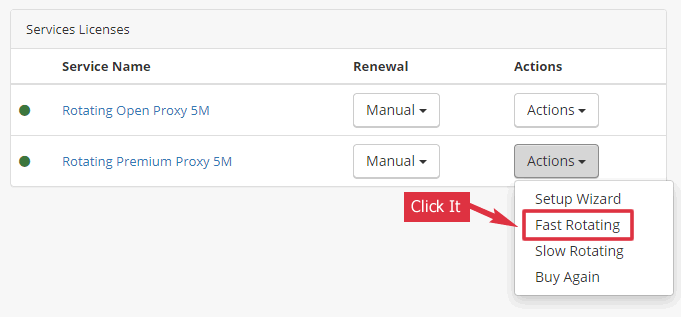
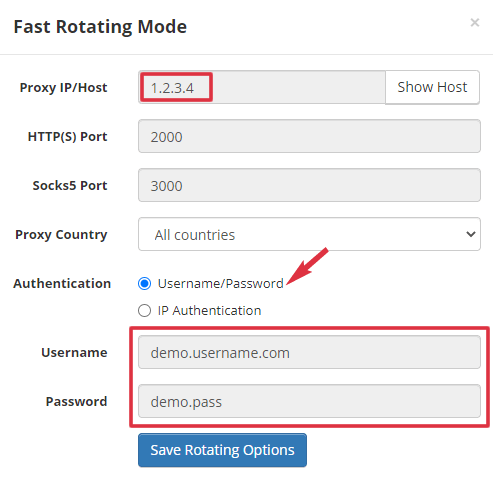
GSA Search Engine Ranker supports username/password authentication for the proxy. You can view your username/password in our client area.
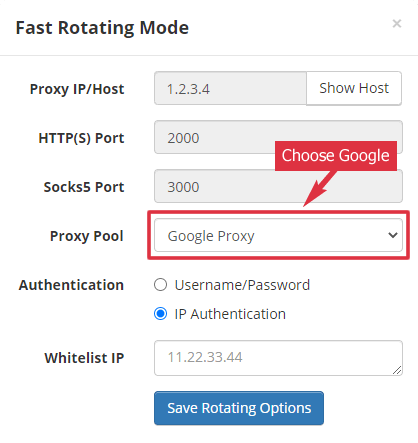
3. Choose Google Proxy
Since you need to get the search result in GSA Ranker, please choose “Google Proxies” as your proxy pool.
4. GSA SE Ranker Options
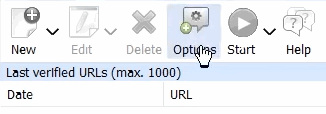
Click the Options button in GSA Search Engine Ranker. It is on the top right of the main window.
5. GSA SE Ranker Proxy Settings
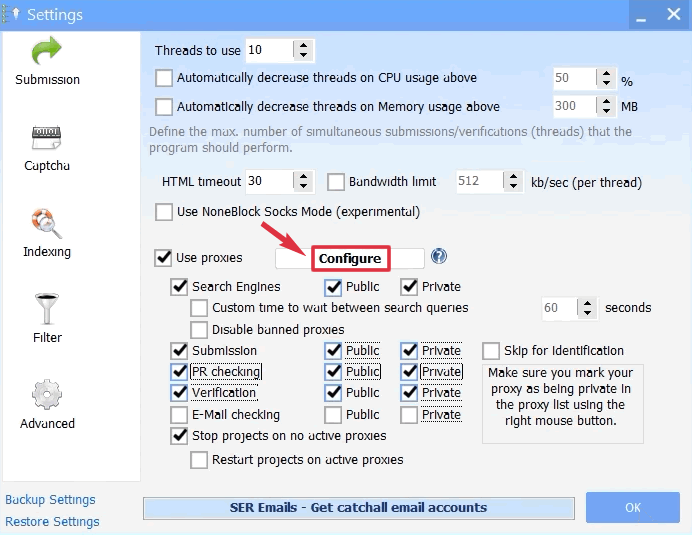
Check all the proxy options except “E-Mail checking”. Please check both “Public” and “Private” in case you forget to mark the proxy as “Private”.
Then click the “Configure” button after the “Use Proxies” option.
6. Add Proxy to GSA SE Ranker
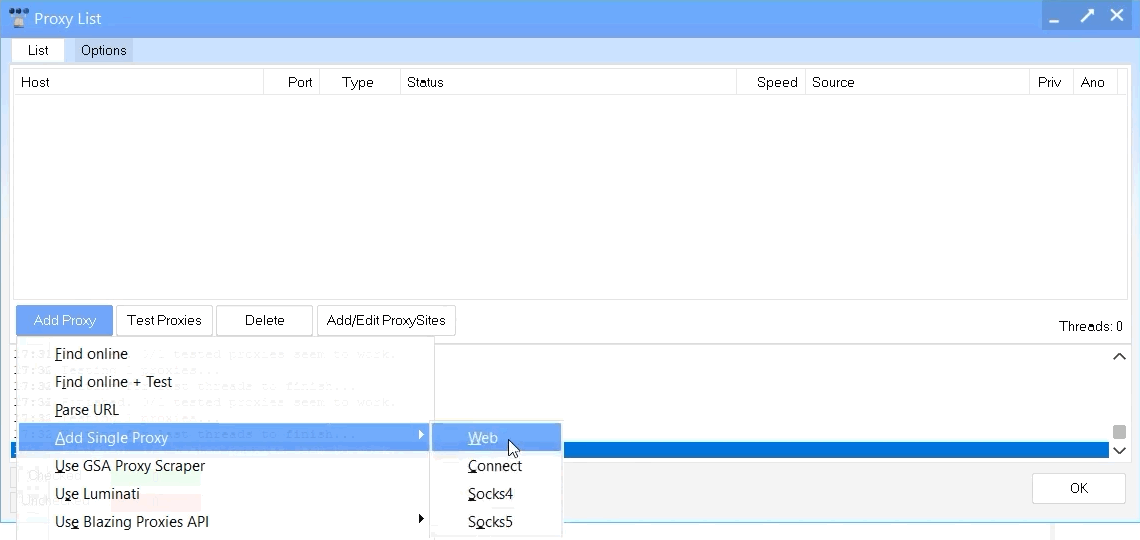
Click the menu “Add Proxy” > “Add Single Proxy” > “Web”.
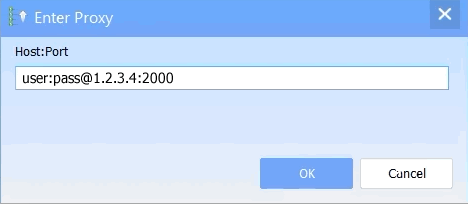
Copy the proxy username, password, IP, and port from Step 1. Then use this format to input them: username:password@ip:port
7. Proxy Added in GSA SE Ranker
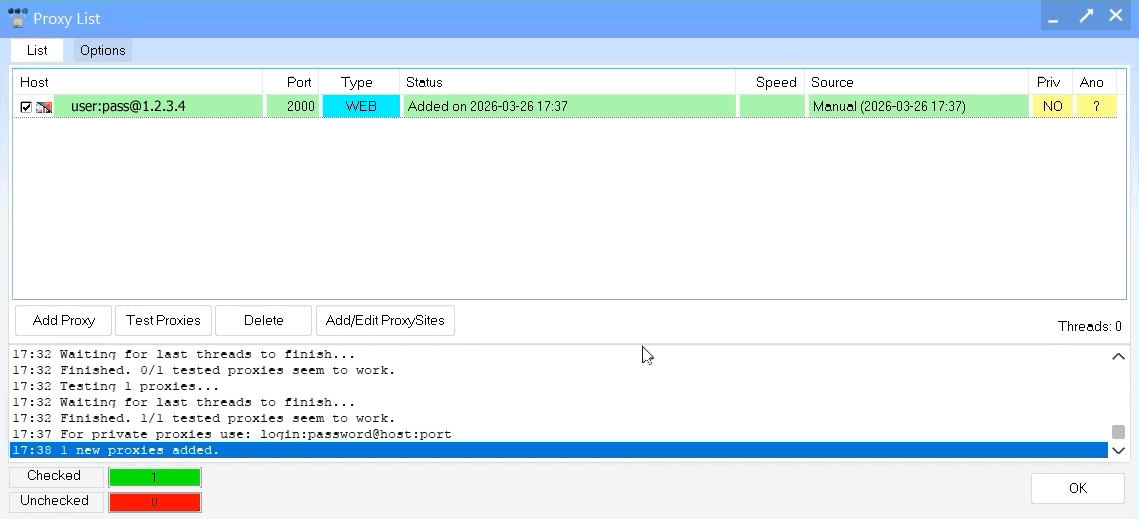
When you see a new line in the “Proxy List” dialog, you are finished.
You may ask if all the traffic is from the same IP. No. Every time GSA SE Ranker uses the rotating proxy, it will use a new IP (from the Proxy Pool) to access the target website.